Maintenance & restart
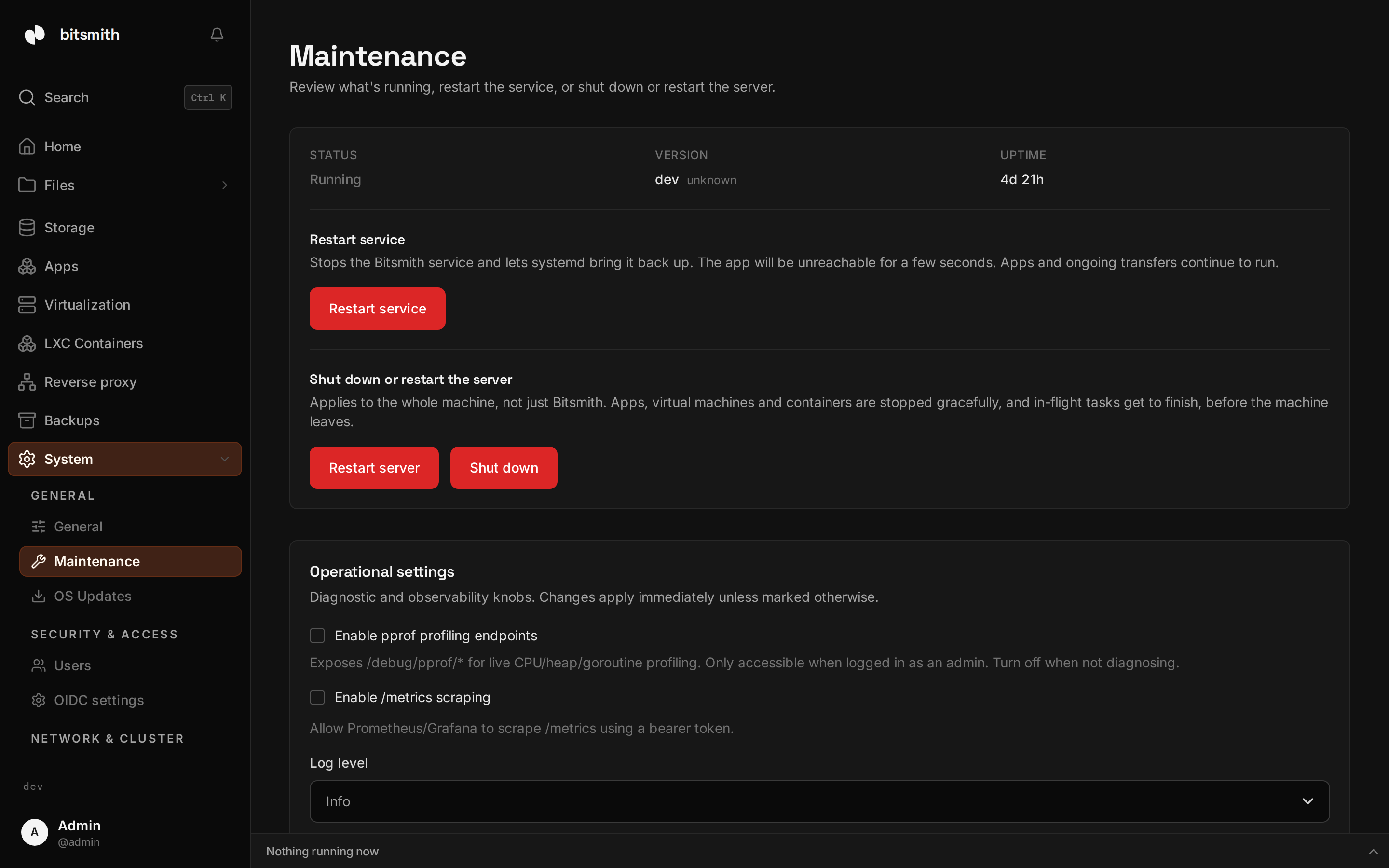
The Maintenance page (under System, Diagnostics) is for keeping the Bitsmith service itself running smoothly. It shows the service status, the version and build it’s running, and how long it’s been up.
Restart the service
Section titled “Restart the service”If the interface becomes slow or unresponsive, restarting the Bitsmith service is the safe first step. Choose Restart service and confirm.
The service stops and your system brings it back up automatically within a few seconds. During that window the management interface and API are unreachable. Your apps, virtual machines, and ongoing file transfers keep running; only the management service restarts, not your data or workloads.
Restarting the service is different from rebooting the whole machine. This only cycles Bitsmith, not the operating system or your apps.
When to restart
Section titled “When to restart”Restart when the interface is unresponsive and a page reload doesn’t help, after a change that asks you to restart, or as a first troubleshooting step before digging into task logs, VM logs, or the Support diagnostic bundle.
Operational settings
Section titled “Operational settings”The same page holds Operational settings, the diagnostic and observability knobs. Changes apply immediately unless noted:
- Log level: Debug, Info, Warn, or Error. Applies to all log output from that moment on.
- Log format: Text, human-readable key=value lines for reading in a terminal, or JSON, structured objects for a log aggregator. Changing the format needs a service restart.
- Enable /metrics scraping: turns on a bearer token you can give to
Prometheus or Grafana to scrape
/metrics, and lets you regenerate it. - Enable pprof profiling endpoints: exposes
/debug/pprof/*for live CPU, heap, and goroutine profiling. Only reachable while signed in as an admin; turn it off when you’re done diagnosing.