Reverse proxy
The Reverse proxy page gives your server one HTTPS entry point, served from
its own virtual IP address. Instead of opening every app port, you type a name
like jellyfin.bitsmith.home.arpa and the proxy forwards the request to the
right app, virtual machine, or container. The Bitsmith interface itself is
served through this entry too.
Enable the proxy
Section titled “Enable the proxy”The proxy is off by default. Enabling it needs two things first: a virtual IP and at least one domain. Enabling runs as a tracked task: the service restarts to hand the virtual IP over to the proxy, and if the proxy is not serving on it after the restart, Bitsmith reverts to the previous configuration. Disabling applies immediately. While the proxy is disabled, its domains are not served and no certificates are issued.
The virtual IP
Section titled “The virtual IP”The proxy binds addresses of its own, separate from the server’s real IP:
- Virtual IP (IPv4) is the floating address your proxied names resolve to. Pick it from the interface’s own subnet.
- Virtual IP (IPv6) is the optional second address for the same role.
- Interface picks where the addresses are added. Bridges and physical interfaces are offered, but bridge ports are not: the address goes on the bridge, not on a port.
The prefix length comes from the selected interface’s subnet, so you configure two addresses and a link, nothing more.
Domains and certificate source
Section titled “Domains and certificate source”Each domain you add is served from the virtual IP, and every domain picks its own certificate source:
- Internal CA uses a certificate authority Bitsmith generates on the server. It needs no internet and works behind NAT, but each device you browse from has to import the CA once. The Download CA button on the certificate card gives you that file.
- A public DNS provider issues a publicly trusted wildcard certificate for your domain through its API (DNS-01). No public IP and no inbound port 80 or 443. Supported providers are Cloudflare, DuckDNS, Hetzner, AWS Route 53, DigitalOcean, Vultr, Porkbun, GoDaddy, Namecheap, OVH, Gandi, Linode, Loopia, Azure, Google Cloud DNS, and ACME-DNS.
To add or change a domain, use the domain rows in Settings: type the name, pick the certificate source, and save. Removing a domain that still has proxy entries is refused, and the last domain cannot be removed.
ACME account and credentials
Section titled “ACME account and credentials”Public-source domains share one ACME account on the server:
- ACME account email registers the account.
- ACME directory URL uses the production Let’s Encrypt endpoint when empty.
- ACME DNS resolvers are the recursive resolvers the issuance precheck queries. Leave them empty to use the public defaults.
Provider credentials are stored once per provider on the server and shared by every domain that uses it. Credentials are never shown back in the interface; a stored provider shows a Stored badge, and a public-source domain will not save until its provider has credentials.
Certificates
Section titled “Certificates”The Certificates tab reports each domain’s source, issuer, validity window, and whether renewal is due. Renew now forces a new certificate for that domain. Public renewals run as a task you can follow in the task dock, and the certificate card shows the issuance in progress while it runs.
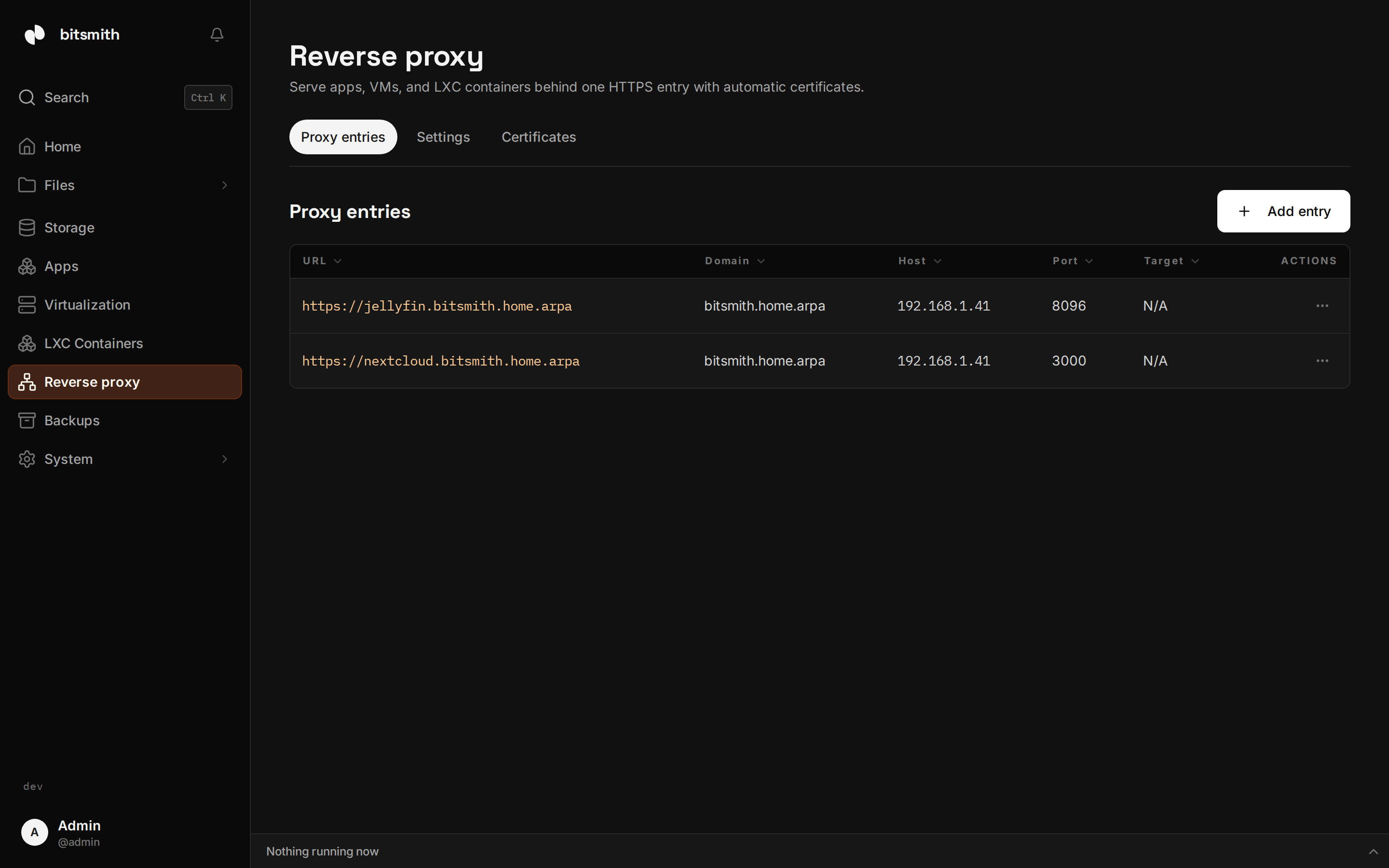
Proxy entries
Section titled “Proxy entries”Entries are how names reach your workloads. Add one from the Proxy entries tab:
- Pick the domain and the subdomain, for example
appunderbitsmith.home.arpa. - Link a target from your apps, VMs, or containers, or set the host and port by hand.
- Optionally set the VIP port: the port on the virtual IP the browser connects to. The default is 443, port 80 is reserved for the redirect to HTTPS, and the same subdomain can carry two entries on different ports.
Each entry also takes upstream options:
- Scheme is how the proxy reaches the upstream. Auto picks HTTPS for port 443 and plain HTTP for anything else.
- Skip upstream TLS verification stops the proxy validating the upstream’s certificate. Entries on port 443 default to it, because guests serve self-signed certificates.
- Header overrides add headers the proxy sends to the upstream. An empty
value strips the header, and placeholders like
{remote_host}resolve at request time.
Entries can also be added from the app, VM, or container detail pages through the same editor.
HTTP/3
Section titled “HTTP/3”The HTTP/3 toggle also serves the proxy over QUIC. It is off by default, because established sessions break across proxy reloads with HTTP/3 on. A change runs as a background task, since it restarts the proxy.
DNS forwarding
Section titled “DNS forwarding”The proxy answers lookups for its own domains from the virtual IP. Lookups it cannot answer go to the resolvers in DNS upstreams. Configure them when you point your LAN’s DNS at the server, so devices that use it still resolve the internet. Leave the field empty to disable forwarding.
DNS rewrites
Section titled “DNS rewrites”A DNS rewrite answers one name with fixed addresses, the job AdGuard Home’s rewrites do on many home networks. Add one on the DNS rewrites tab: a domain, plus the IPv4 and IPv6 addresses to answer with.
Use nas.example.com for a single name, or *.example.com for every name
below example.com. A wildcard never matches example.com itself.
A rewrite wins over the proxy’s own answer and over forwarding, and it works on any name, not only your proxy’s domains. A matched name is answered from the rewrite alone. Ask for an address family the rewrite has no addresses for, or for any other record type, and the server answers with no records at all.
Rewrites are part of the proxy configuration, so they move to another server with Move proxy to… and are answered while the proxy is enabled. Remove one and the name goes back to the proxy’s own answer, or out to the DNS upstreams.
The cluster holder
Section titled “The cluster holder”When you have paired peers, the proxy is one logical proxy for the whole cluster: one configuration, one set of certificates, and exactly one peer serving it at a time, called the holder. The rest keep a synced copy as standbys. The Settings tab shows who holds the proxy and offers two actions:
- Move proxy to…, on the holder, moves the configuration and certificates to the chosen peer, which then serves, while this peer steps down to standby. The confirmation asks you to understand that the chosen peer will become the proxy holder.
- Take over proxy, on a standby, makes this peer the holder while the other peers step down. Use it when the recorded holder is unreachable. The confirmation asks you to understand that this peer will take over the proxy.
Disable the proxy
Section titled “Disable the proxy”Turn off the Reverse proxy enabled toggle to stop serving. Your domains stop resolving from the virtual IP, and the built-in DNS stops answering for them, but your settings and certificates stay in place, so you can re-enable at any time. The Bitsmith interface keeps working on the server’s real IP.