Household users
Household users are the accounts people in your home use to reach shared folders and, if you allow it, to sign in to Bitsmith itself. You create one per person under Access.
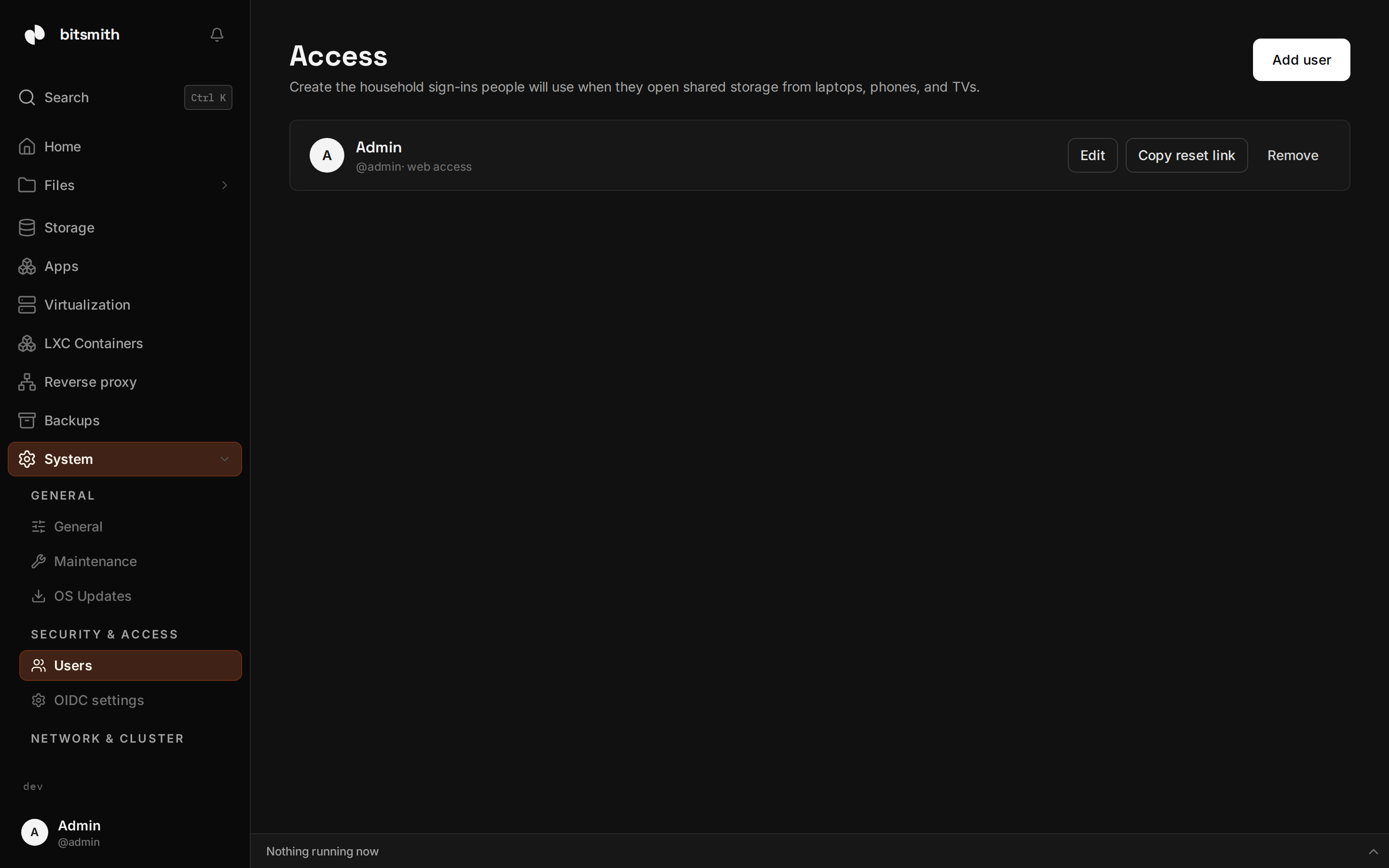
Add a user
Section titled “Add a user”- Open Access and add a user.
- Fill in:
- Display name, the person’s name as shown in the interface.
- Username, what they type to connect or sign in. This can’t be changed later.
- Email, optional, used for password resets and notifications.
- Password.
- Web access, whether this person can sign in to the Bitsmith interface, not just reach shared folders.
- Save.
A user who only needs files doesn’t need web access; their username and password are enough to open a network share from their device.
Manage a user
Section titled “Manage a user”From a user’s menu you can edit their details, send a password reset link (if they have an email), or delete the account. Deleting a user removes their sign-in and their access to shares; it does not delete any files.
Your photo
Section titled “Your photo”Open your profile from the bottom of the sidebar to add a photo. Bitsmith
crops it to a square and resizes it, so any PNG or JPEG up to 4 MB works. The
photo shows next to your name in the sidebar and in the household list, and
removing it brings back your initial. Photos are stored on the server with the
rest of your account and are included when you back up /etc/bitsmith.
The first account created during setup is an administrator. Administrators manage the server (storage, apps, users, settings). Other users you add are for file access and everyday use.
For company or shared logins through an identity provider, see Single sign-on. To protect your own account with a second factor, see Two-factor authentication.