Create and manage LXC containers
An LXC container is a lightweight Linux system that shares your server’s kernel instead of booting its own. That makes it start in seconds and use far less memory and disk than a full virtual machine, while still giving you a real, isolated Linux environment with its own packages, services, and root filesystem.
Reach for a container when you want a clean Linux box for a service or a bit of tinkering and don’t need a different kernel or a full OS install. Reach for a VM when you need complete isolation, a non-Linux OS, or your own kernel.
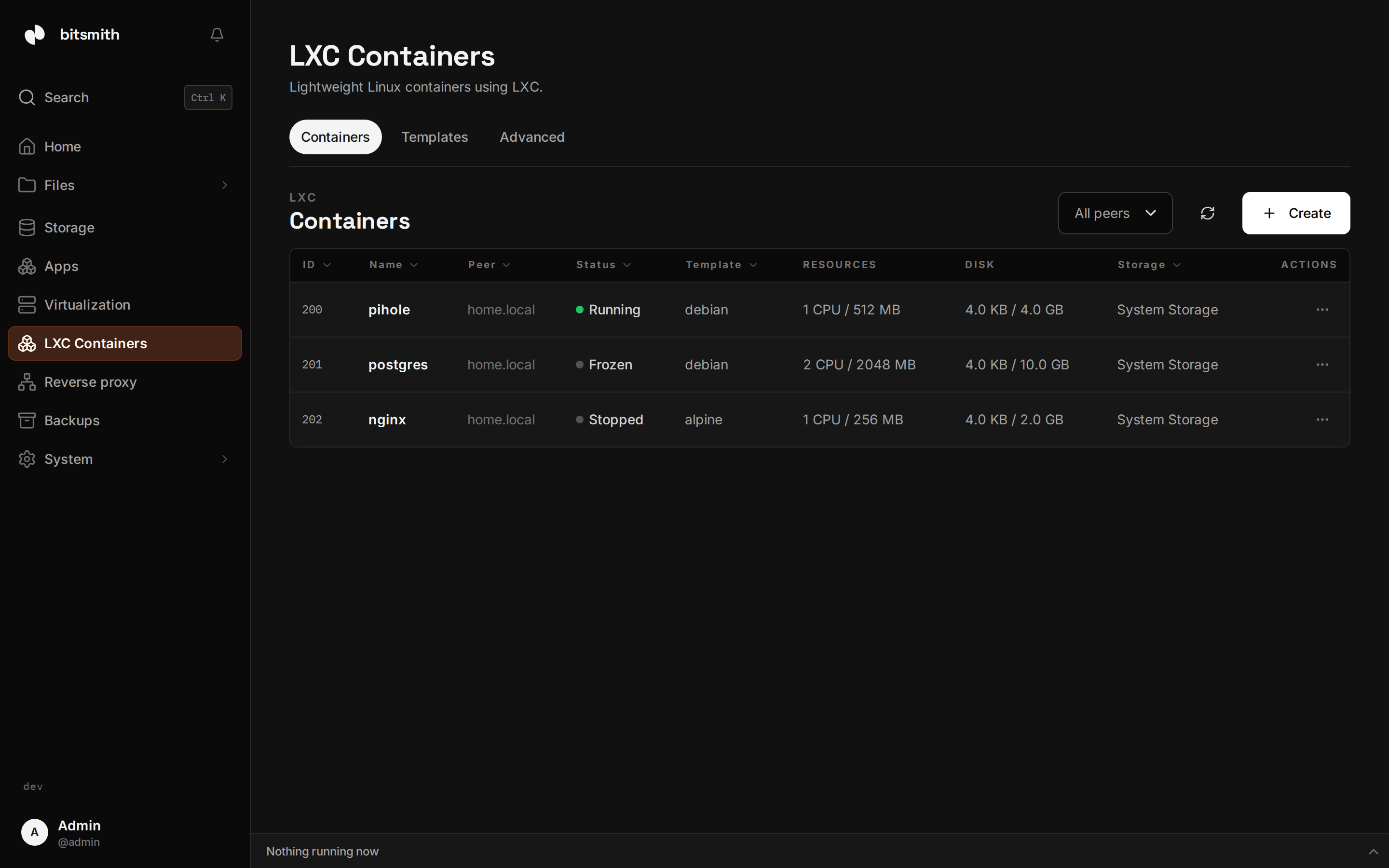
LXC containers live under LXC Containers in the sidebar.
1. Choose a template
Section titled “1. Choose a template”Give the container a name (the ID is suggested for you). Containers are created from a template: pick a system from the grid (Ubuntu, Debian or Rocky Linux, each for both amd64 and arm64) and Bitsmith downloads it to reuse for future containers. Your templates holds the templates you uploaded or captured from a container. See Templates & storage for managing the templates and where containers are stored.
2. Set resources
Section titled “2. Set resources”- CPU and memory limits.
- Storage space for the container, with an optional disk limit so a single container can’t fill the pool. The limit applies to containers on ZFS storage; containers on the system drive are not size-limited.
- Network: bridged onto your LAN bridge, so the container shows up as a device on your home network, with an optional static IP, or no network at all.
- Unprivileged by default, which is the safer choice for most workloads. A nesting toggle lets the container run its own containers when you need it.
- GPU: share one of the server’s GPUs with the container, for work like video transcoding. Change it later under Configuration; the container picks up the change when it restarts. An NVIDIA GPU needs the NVIDIA Container Toolkit on the server and works in unprivileged containers.
Control a container
Section titled “Control a container”Each container has the controls you’d expect: start, stop, and restart, plus clone to spin up a copy of an existing container without setting it up from scratch. Freeze pauses every process in the container without shutting it down, so unfreeze resumes it instantly with its state intact: a quick way to park a container you’re not using without losing where it was.
Live CPU, memory, disk, and network stats stream on the container’s page while it runs, so you can see what it’s doing at a glance.
Work inside a container
Section titled “Work inside a container”The container’s Console tab opens a shell directly inside the container, attached with lxc-attach. The container has to be running; the console shows when it connects and when it drops.
There’s also an API path for one-off commands: the MCP tool
run_command_in_lxc_container runs a shell command inside the container the
same way, under the lxc.exec scope. See
MCP agent access.
Back it up
Section titled “Back it up”Open a container and choose Back up to copy it to the system drive, a storage space, or a connected share, once or on a schedule. Restore it as a new container or in place of the existing one. See Backups.