Storage spaces & layouts
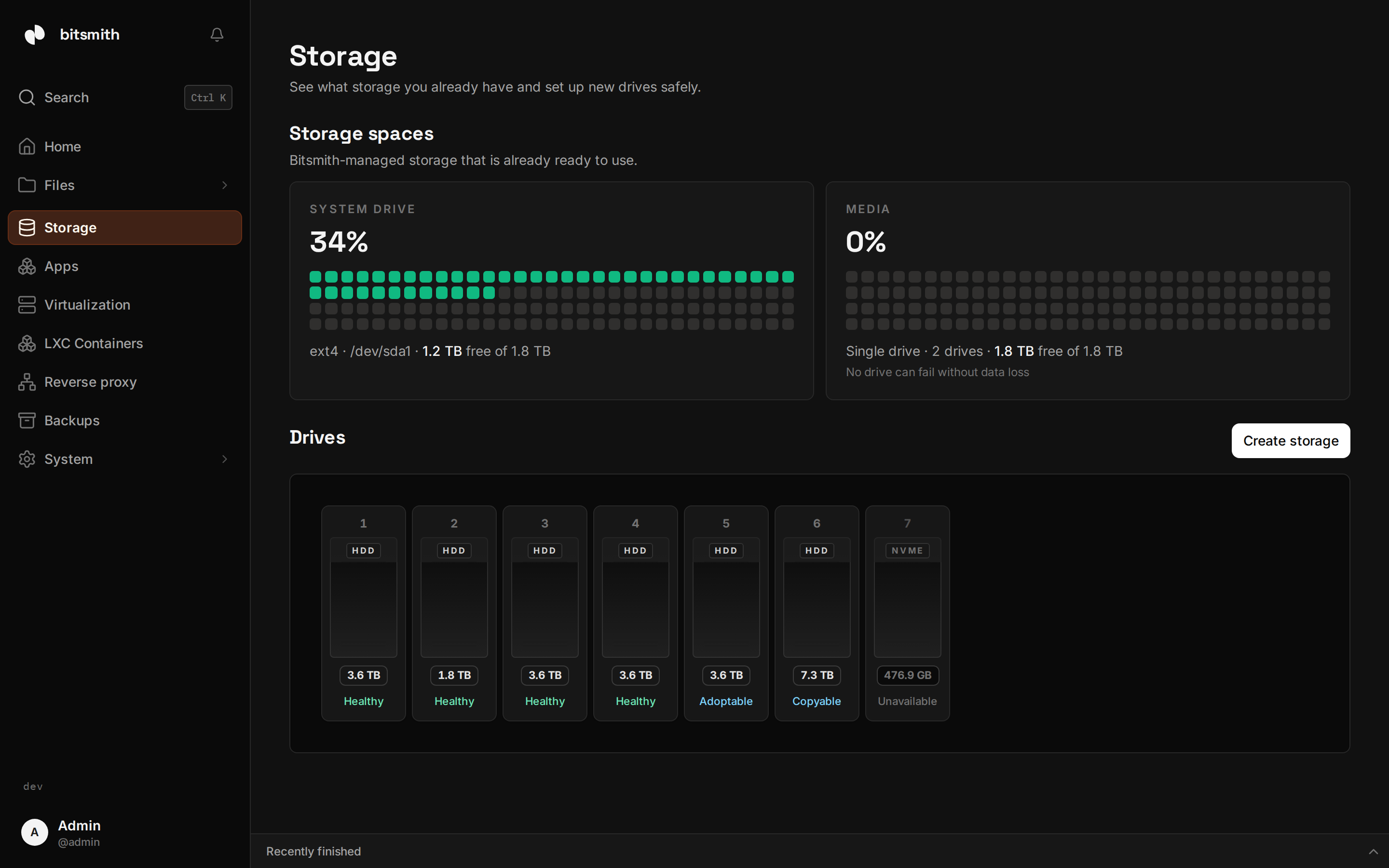
A storage space is a set of drives Bitsmith manages as one place to keep files. When you create one, you choose a layout, which decides how your drives work together and how much protection you get if a drive dies.
Create a storage space
Section titled “Create a storage space”- Open Storage and click Create storage.
- Click the empty drives you want to use. Bitsmith shows a running count of how many you’ve picked.
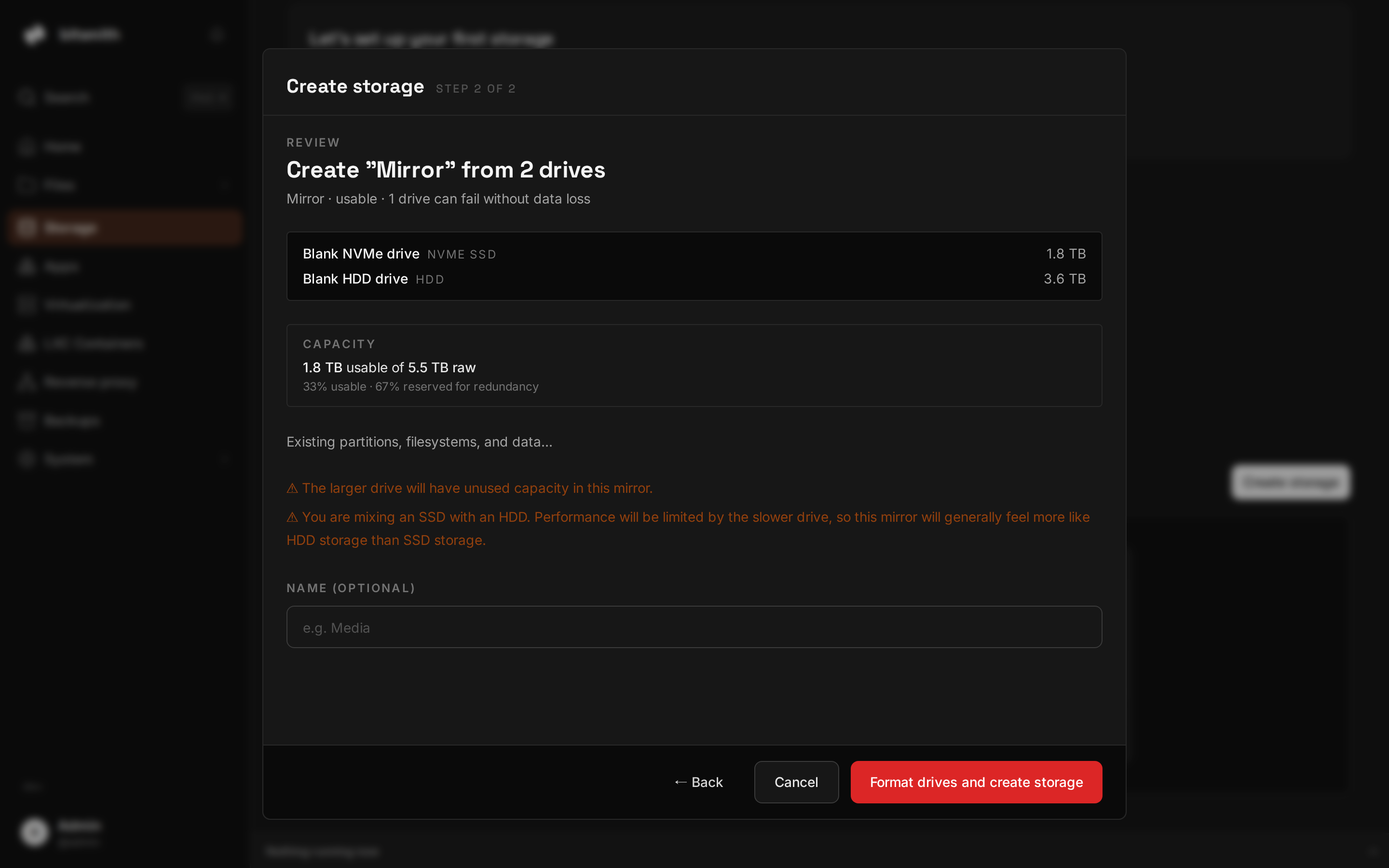
- Choose a layout (below). Bitsmith marks the recommended option for the drives you selected and shows how much space you’ll get.
- Give the space a name, for example “Media”, and click Format drives and create storage.
Creating a space wipes the selected drives. Bitsmith only lets you pick drives that are empty or that you’ve cleared first.
The create-storage flow shows the layout, the resulting capacity, and what’s usable versus reserved for protection before you commit:
Layouts
Section titled “Layouts”The layout is the trade between usable space and protection. Bitsmith shows both numbers as you choose.
| Layout | Drives | Protection |
|---|---|---|
| Single drive | 1 | None. If the drive fails, its data is gone. |
| Mirror | 2 | Survives one drive failing. Usable space is one drive. |
| RAIDZ1 | 3+ | Survives one drive failing. |
| RAIDZ2 | 4+ | Survives two drives failing at once. |
“Protection” means a copy or parity is kept so a failed drive can be replaced without losing data. It is not a backup: it guards against a drive dying, not against deletion or theft. Keep backups for anything important.
Under the hood these map to ZFS pool types (mirror, RAIDZ1, RAIDZ2). You don’t need to manage ZFS yourself; Bitsmith creates and maintains the pool for you.
After it’s created
Section titled “After it’s created”Each space shows on the Storage page with a usage ring (free, used, and the portion reserved for protection), its layout, and a health status. Click a space to see its drives and run maintenance.
Next steps: