Folders & files
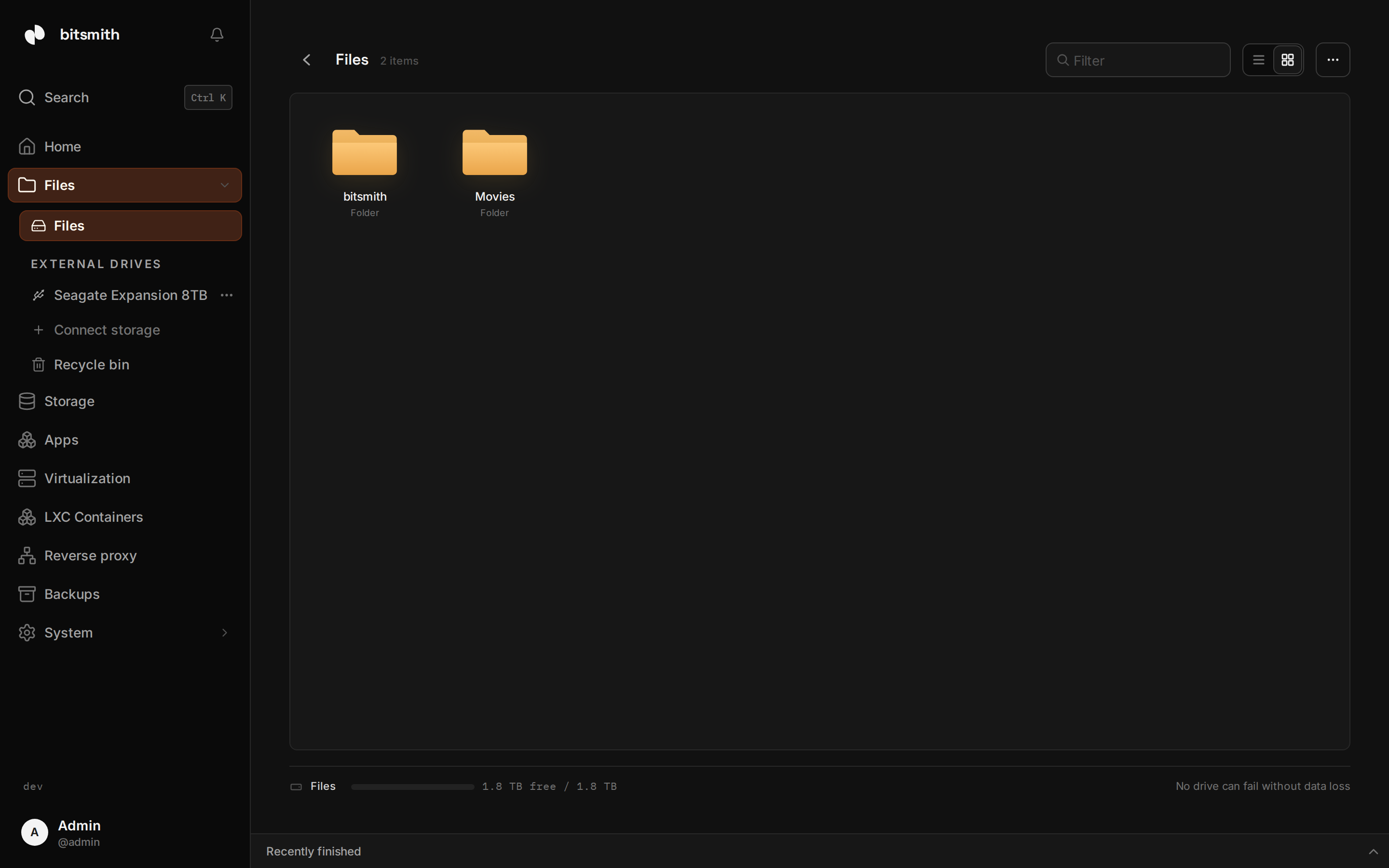
Once you have a storage space, the Files section is where you organize and move your data. Pick a storage space from the sidebar to browse it.
Folders
Section titled “Folders”Folders are the top-level groupings inside a storage space, for example “Movies”, “Photos”, or “Documents”. They’re also what you point apps and shares at.
To create one, open a storage space and click New folder. Right-click a folder for its menu: rename, move, copy, or delete. Deleting moves it to the recycle bin first.
The file browser
Section titled “The file browser”Inside a folder you can navigate with the breadcrumb trail, switch between list and grid views, and search the current view. Right-click any file for cut, copy, paste, rename, and delete.
To upload, drag files onto the browser or use the upload control; large transfers run in the background and show progress. Select multiple items to move, copy, or delete them together.
Recycle bin
Section titled “Recycle bin”Deleted files and folders go to the Recycle bin (in the Files sidebar) rather than disappearing. Each entry shows where it came from, who deleted it, and when.
Restore puts an item back where it was, Permanently delete removes a single item for good, and Empty recycle bin clears everything and frees the space.
To share a folder with other devices on your network, see Network shares.