Two-factor authentication
Right now your password is the only thing protecting your account. With two-factor authentication (2FA) you also enter a 6-digit code from your phone when you sign in, so a stolen password isn’t enough on its own.
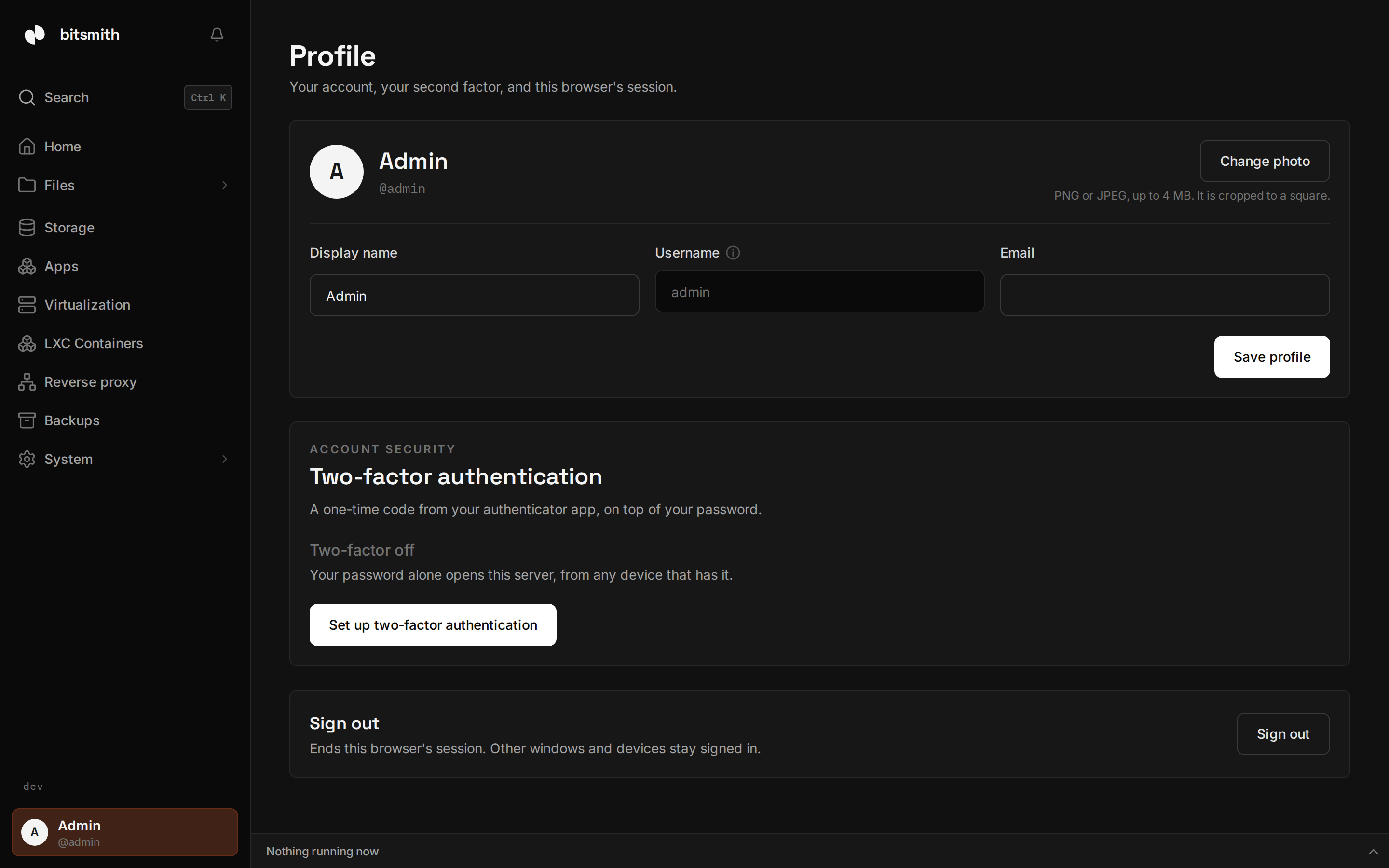
Bitsmith uses standard authenticator apps (Google Authenticator, Authy, 1Password, and others). You set it up on your own account from Profile.
Turn it on
Section titled “Turn it on”- Open Profile and find two-factor authentication.
- Choose to enable it. Bitsmith shows a QR code and a secret key.
- In your authenticator app, add an account by scanning the QR code (or entering the secret key by hand).
- Enter the 6-digit code the app shows to confirm, and enable.
Save any recovery codes Bitsmith gives you somewhere safe. They let you back in if you lose your phone.
Signing in afterward
Section titled “Signing in afterward”From then on, after your password, Bitsmith asks for the current 6-digit code from your app. The code changes every 30 seconds.
Turn it off
Section titled “Turn it off”You can disable 2FA from Profile. Bitsmith confirms your password first, so someone at an unlocked screen can’t remove it silently.