Install & manage apps
The Apps page is a catalog of ready-made apps for your home: media servers like Jellyfin and Plex, Immich for the photos on your phones, the *arr apps and download clients, Home Assistant, Pi-hole and AdGuard Home, Uptime Kuma, Ollama, databases, and more. Pick one and Bitsmith does the rest. Most apps run in their own lightweight LXC container, so apps never step on each other and removing one leaves nothing behind. A few, like Home Assistant OS, are a whole operating system and install as a virtual machine; each card says which.
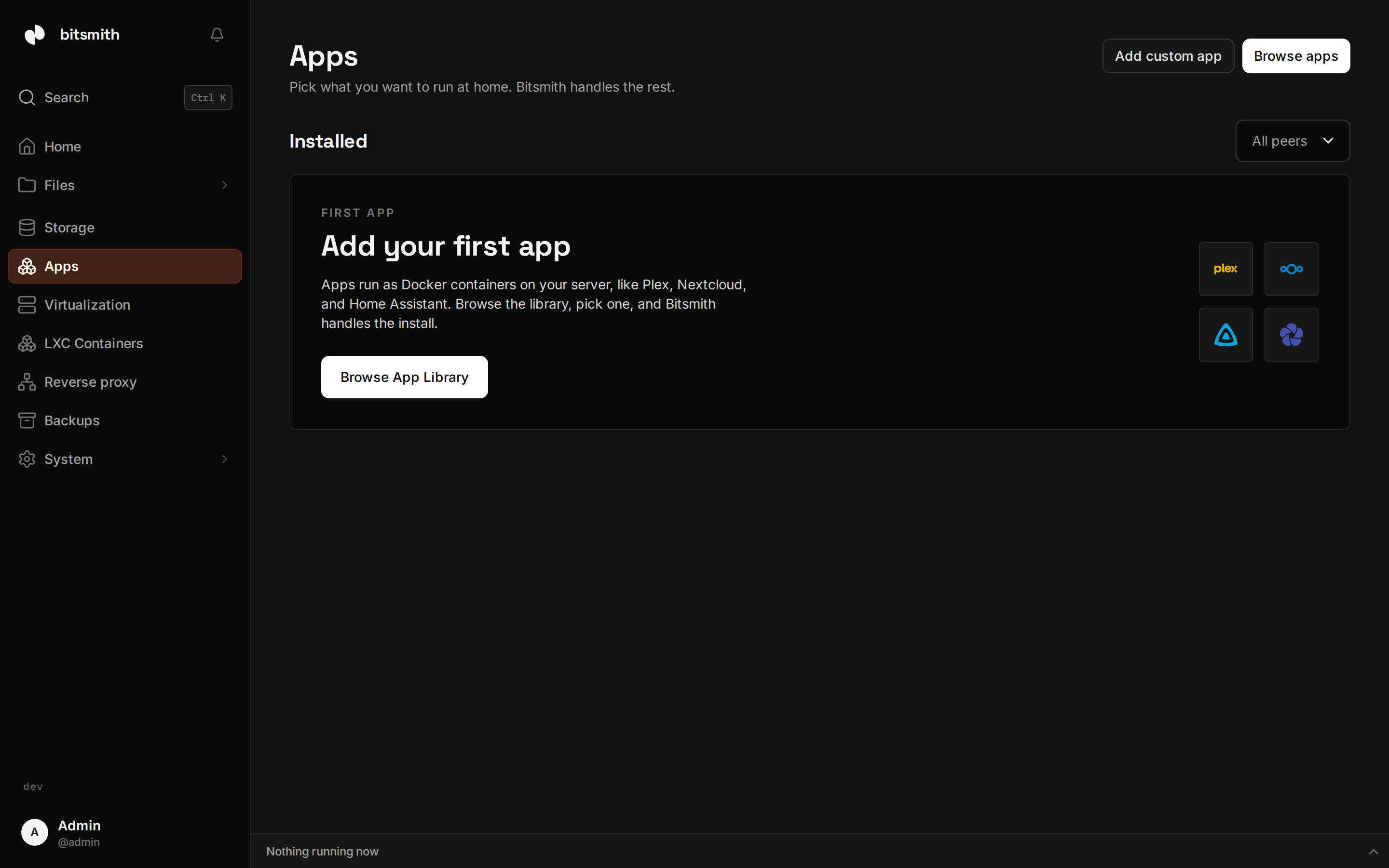
The first time you open Apps, Bitsmith may ask to turn on containers. Choose Enable apps and it checks and prepares the server once.
Install an app
Section titled “Install an app”- Open Apps and find the app in the catalog. Search by name, or pick a category like Media or Home automation.
- Choose the app. Bitsmith shows what it does and what it gets: CPU, memory, disk, and a GPU for apps that can use one.
- Connect folders if the app suggests them. For a media server, choose your Movies or Music folder, for example.
- Choose Install. Bitsmith sets up the container, installs the app, and checks that it answers.
If the server is short on memory right now, Queue it installs the app as soon as there is room.
To change more before installing, choose Customize. It opens the same steps as creating an LXC container yourself, filled in for the app: name, storage, network, CPU, memory, disk, GPU, and folders, including whether each folder is read only.
When it’s done the app’s page opens with a link to the app. Some apps create an admin account during the install; Bitsmith shows those sign-in details on the app’s page. Change the password in the app once you’re in.
Home network or through the server
Section titled “Home network or through the server”In Customize, the network decides how you reach the app:
- Home network: the app gets its own address on your network, like any other device. This is the default when your server has a network bridge, and it’s what apps like Pi-hole or AdGuard Home need to work well.
- Through this server: the app stays on the server’s own network and opens at your server’s address on a port Bitsmith picks for it.
Without a network bridge, apps install through the server. You can set up a bridge under Network.
Hardware transcoding
Section titled “Hardware transcoding”Media servers like Jellyfin, Plex, and Emby can use your server’s GPU to convert video while it plays. Bitsmith gives these apps the server’s GPU when it has one that works in a container. Jellyfin is set up to use it; in Plex and Emby, turn on hardware transcoding in the app’s own settings. An NVIDIA GPU needs the NVIDIA Container Toolkit on the server; without it the install dialog says so. With more than one GPU, pick which one in Customize, or later under the container’s Configuration, and restart the container.
Open and manage an app
Section titled “Open and manage an app”An installed app is an LXC container, so it lives on the LXC Containers page with its logo and an Open button. A virtual machine app lives on the Virtualization page the same way. In the catalog, installed apps show Installed; choosing one takes you to its page, where you can:
- Open the app, or copy its address.
- Start, Stop, or Restart it. A stopped app keeps its data.
- Update app. Bitsmith updates the app and its container’s packages, then checks the app still answers.
- Change its folders, CPU, memory, or GPU.
- Use the Console to get a shell inside the app’s container.
- Set up Backups of the app, like any container.
If an install stops, the app’s page says so and shows the install log. Try again runs the app’s setup once more in the same container.
Remove an app
Section titled “Remove an app”Delete the app’s container or virtual machine from its page. This removes the app and everything it stored inside it. Files in connected folders are yours and stay where they are.
Already run Docker?
Section titled “Already run Docker?”If you have your own Docker Compose apps, add them under Docker.