Network settings
The Network page shows how your server connects to your home network and lets you change it. Most homes work out of the box; you’ll come here mainly to give the server a fixed address.
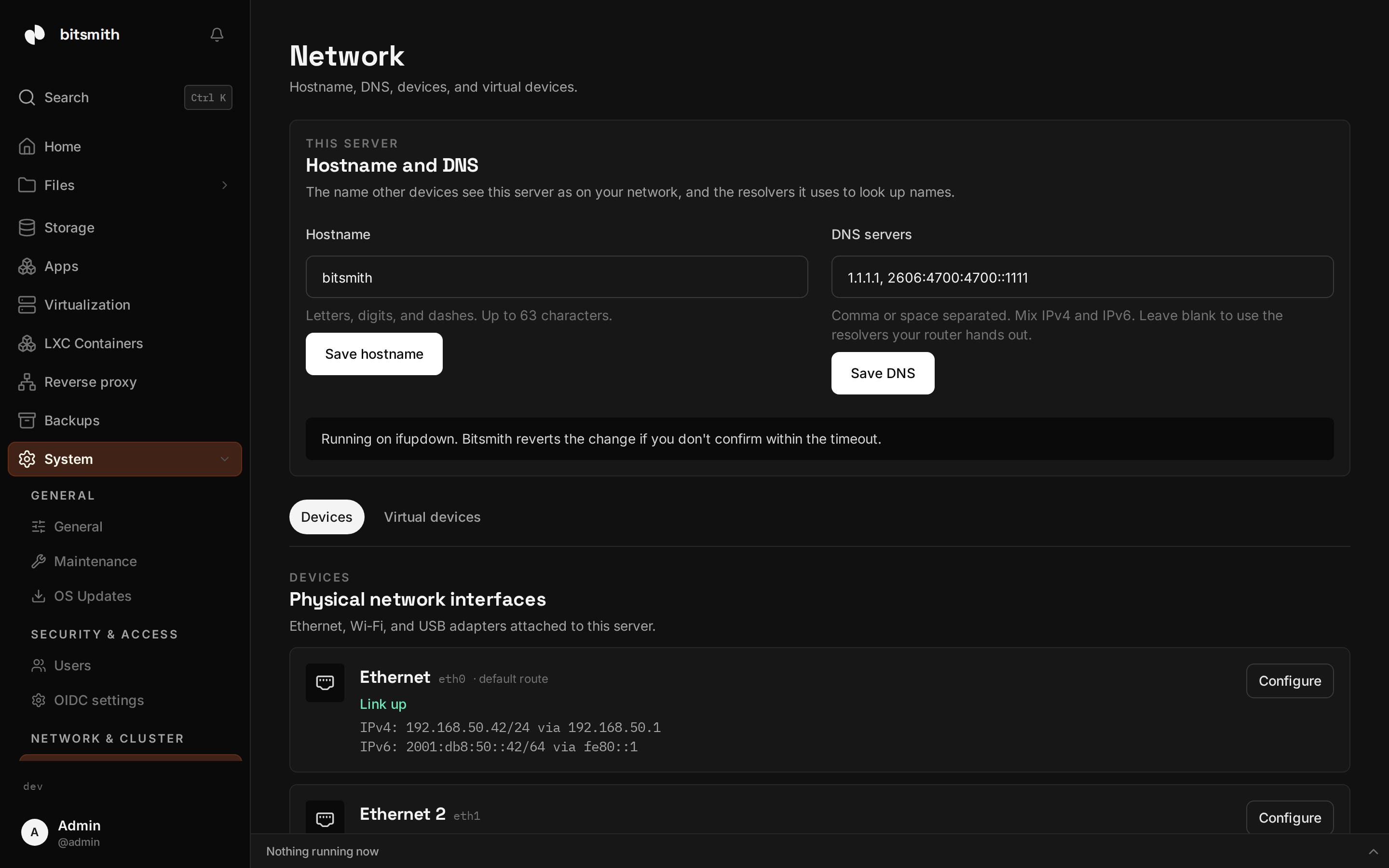
Hostname and DNS
Section titled “Hostname and DNS”Hostname is the name your server goes by on the network; set it to something memorable like “homeserver”. DNS servers decide how the server looks up internet addresses. Leave the default unless you run your own DNS (for example Pi-hole), then point it there.
Network interfaces
Section titled “Network interfaces”Each network connection (wired or Wi-Fi) is listed with its link status and current address. Edit one to change how it gets its address:
- Automatic (DHCP) lets your router assign the address. This is the default.
- Fixed address lets you set a specific IP and gateway, so the server always answers at the same address. A fixed address is worth setting once you rely on the server, so bookmarks, shares, and apps don’t break when the address changes.
Safe apply with rollback
Section titled “Safe apply with rollback”Changing network settings can cut off the very connection you’re using. When you apply a change, Bitsmith starts a countdown and asks you to confirm you’re still connected. If you don’t confirm, it rolls back to the previous settings so you’re never locked out. The page shows whether automatic rollback is available for your system.
VM bridge
Section titled “VM bridge”If you run virtual machines that need to appear on your home network directly, enable a VM bridge here and choose which interface it attaches to. Bridges and virtual interfaces created by Docker, libvirt, or the system show up here too.